Tutorial 63
Introduction
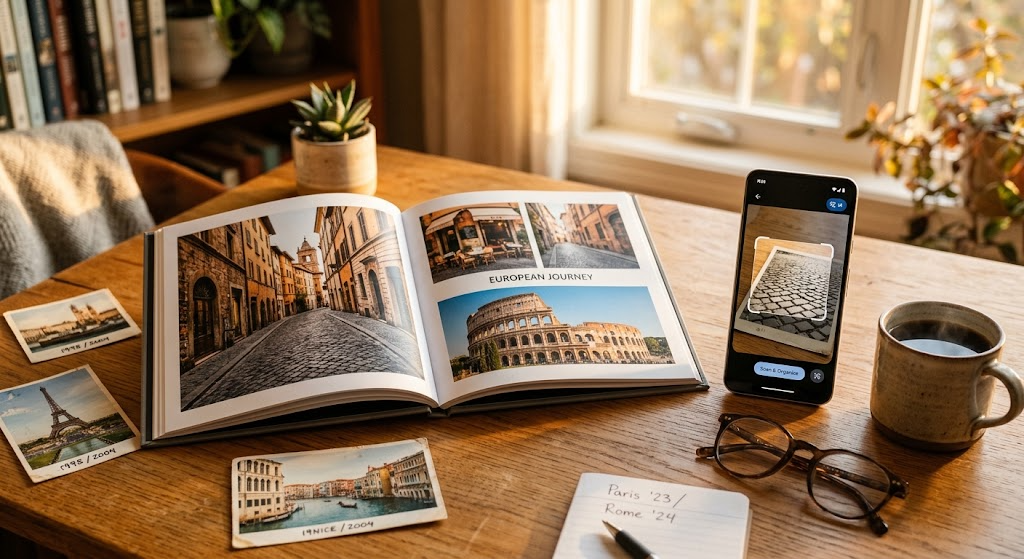
You spent weeks planning a wonderful trip using AI assistants like in Tutorial 41, took hundreds (or thousands) of digital photos, and now you are back home facing a daunting digital mess: unorganized camera rolls, obscure landmarks, blurry duplicates, and no easy way to turn those memories into something tangible.
This tutorial bridges the gap between raw trip photos and finished, display-ready keepsakes. Using modern AI vision tools, you can seamlessly organize, caption, touch up, and curate your travel photos into print-ready physical photobooks or interactive digital travelogues without spending days on tedious manual labor.
Phase 1: AI-Powered Organization & De-Cluttering
Before creating albums or photobooks, clean up your photo library to separate the gems from the clutter.
1. Smart Deduplication & Quality Filtering
Rather than manually deleting blurry photos, accidental pocket shots, or five nearly identical group photos, use native device AI or dedicated tools to do the heavy lifting:
- Apple Photos / Google Photos: Built-in AI automatically groups duplicate images, identifies blurry shots, and flags low-quality photos.
- Mylio Photos / Narrative Select: Specialized AI tools that score travel photos on sharp focus, open eyes, and good exposure, automatically picking the best shot from a sequence.
2. Landmark & Object Recognition via AI Vision
When you cannot remember the name of a cathedral, statue, or mountain viewpoint you photographed, let AI vision identify it for you:
- Google Lens / Apple Visual Look Up: Open any photo, tap the vision icon, and the AI will identify historical landmarks, specific plant or animal species, art pieces, and restaurants.
- Search by Concept: Instead of scrolling endlessly, search your photo library using natural descriptive phrases like “sunset at the harbor”, “pasta dinner in Rome”, or “hiking trails with red rocks”.
Phase 2: AI Visual Editing & Image Enhancement
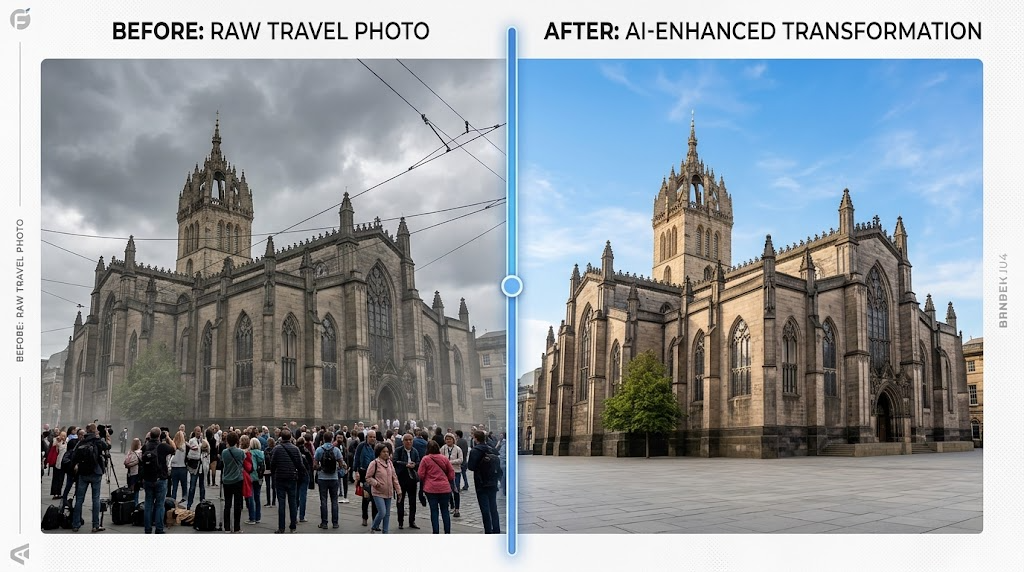
Enhancing travel photos used to require complex editing software. AI vision and generative fill tools make touch-ups accessible with simple clicks or natural language commands.
1. One-Click AI Photo Enhancement
Modern platforms use neural networks to analyze light, shadows, and color temperature:
- Lightroom Mobile AI / Google Photos Magic Eraser: Automatically balances backlit subjects, fixes dark skies, and restores natural skin tones without over-saturating colors.
2. Cleaning Up Background Distractions
Travel spots are often crowded, but generative AI tools allow you to restore focus to your main subject:
- Distraction Removal: Select tourist crowds, stray trash cans, or power lines, and let tools like Photoshop Generative Fill, Google Magic Eraser, or Canva Magic Edit seamlessly blend the background.
- Sky Replacement: Convert dull, overcast gray skies from a rainy afternoon into warm twilight or clear daylight.
Phase 3: Automated Captioning & Narrative Generation
A great travelogue or photobook relies on storytelling. Multi-modal AI vision models (such as ChatGPT, Claude, or Google Gemini) can read visual elements in your photos and draft personalized, engaging captions.
How to Generate Storytelling Captions:
- Upload a batch of 3–5 photos from a specific day or outing to your AI assistant.
- Provide a brief context (e.g., “These are photos from our morning walking tour in Kyoto, Day 3 of our trip”).
- Copy and paste the prompt below to generate narrative captions.
AI Travel Caption Prompt:
“I am creating a personal travel album about my trip to [Destination]. Look at the uploaded photos and write short, engaging captions for each one. Include a mix of warm personal commentary, historical context for any visible landmarks, and fun details. Keep the tone conversational, reflective, and concise (2-3 sentences per photo).”
Phase 4: Designing Print-Ready Photobooks & Digital Travelogues
Once your photos are filtered, enhanced, and captioned, bring them together into a completed project.
Option A: Print-Ready Physical Photobooks
- Mixbook / Chatbooks / Shutterfly AI: Upload your curated batch of photos. Their AI layout engines analyze image timestamps, locations, and photo quality to automatically construct balanced page layouts, group related events, and auto-populate your generated text captions
- Customization Tip: Review the AI-generated layout to ensure chronological flow, adjust image sizing for key hero shots, and select neutral background colors to make photos pop.
Option B: Digital Interactive Travelogues
- Canva / Adobe Express / Microsoft Sway: Use pre-designed digital newsletter or presentation templates. Paste your AI-enhanced photos alongside your generated travel narratives to create shareable online links or digital PDFs for family and friends.
Step-by-Step Workflow Checklist
- Import & Filter: Run native device deduplication to prune duplicate or blurry shots.
- Identify & Tag: Use Google Lens or Visual Look Up to identify unnamed locations and landmarks.
- Enhance: Apply AI lighting corrections and remove background clutter or unwanted distractions.
- Draft Narrative: Upload key images to an AI vision model to generate story-driven captions and reflections.
- Layout & Publish: Feed the structured photos and captions into an AI photobook designer or digital travelogue template for final printing or sharing.
Quick Win ⚡
Identify an Unknown Landmark in Under 30 Seconds
Open your phone’s photo library, select an older travel photo with a building, monument, or natural landmark you can’t quite identify, and tap the Google Lens icon (on Android/Google Photos) or the Visual Look Up “i” button (on iPhone). Within seconds, the AI will pull up the exact name, historical background, and location of the sight—giving you an instant start on your photo captions without searching through old maps or travel receipts.
Matt’s Tip 💡
Don’t Let the AI Replace Your Voice—Let It Anchor Your Memories
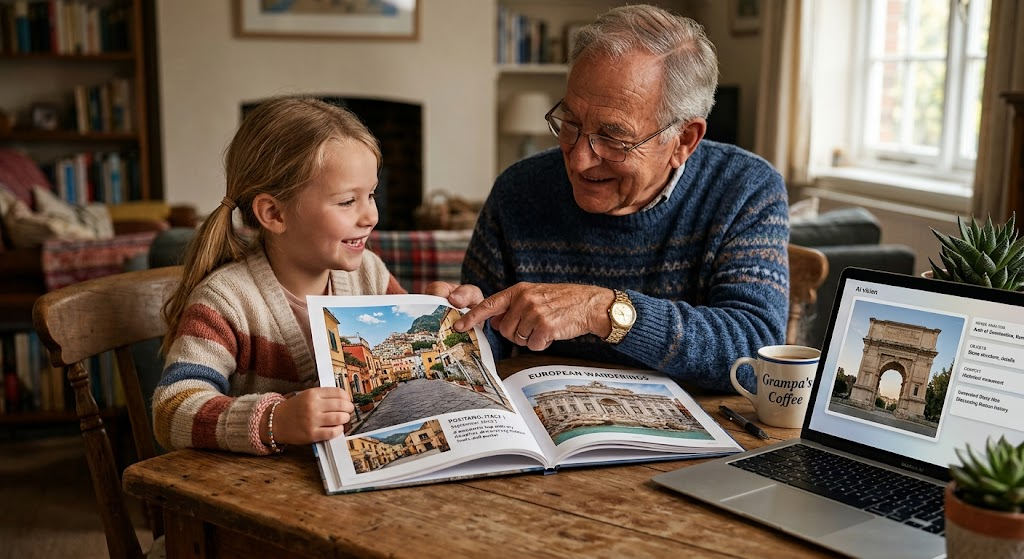
AI vision tools are brilliant at identifying dates, architectural styles, and landmark histories, but they don’t know how you felt standing there. When generating captions, treat the AI’s response as a starting draft for the factual details, then add 1–2 sentences of your own personal touch—like the hilarious mishap at the café nearby or how cold the wind was that afternoon. That blend of accurate history and personal perspective is what transforms a simple photo album into a cherished family heirloom.