Tutorial 64
Introduction
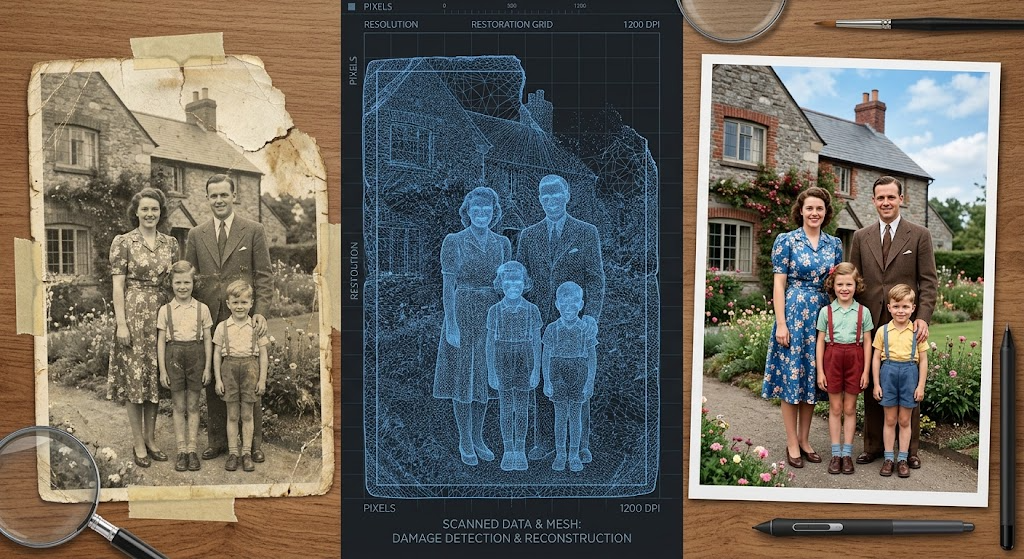
Uncovering old family photographs and historical documents often means dealing with faded colors, tears, blurriness, or chaotic disorganization. By using modern AI vision and editing tools, you can easily repair damaged heirlooms, restore lost colors, and organize decades of digital memories in minutes.
Step-by-Step Tutorial: Restoring and Organizing Your Archives
- Digitize Your Originals
- Use a flatbed scanner or a high-resolution smartphone scanning app (such as Google PhotoScan or Adobe Scan) to digitize physical prints, negative slides, or documents.
- Ensure bright, indirect lighting to prevent glare on glossy paper.
- Enhance and Repair Damaged Photos
- Upload low-resolution, scratched, or blurry images into AI enhancement tools (such as VanceAI, Remini, or Photoshop’s Neural Filters).
- Apply Scratch Reduction and Face Enhancement filters to automatically fill in physical creases, clean up background noise, and sharpen facial features.
- Colorize Black-and-White Images
- Import monochrome photos into an AI colorization tool (such as Palette.fm or MyHeritage In Color).
- Select a color style prompt or let the AI vision model analyze ambient lighting and textures to apply accurate, natural skin tones and historical clothing colors.
- Restore Faded Documents & Letters
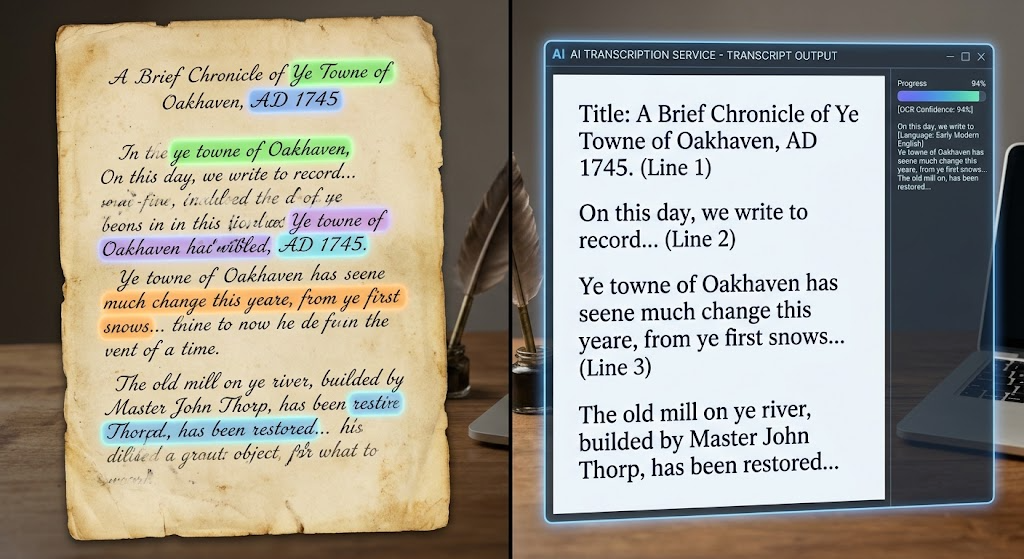
- Pass illegible, stained, or low-contrast handwritten letters through an AI vision tool (like ChatGPT Vision or Claude) or document enhancement suite.
- Ask the AI to enhance image contrast for readability and provide a complete text transcription of handwritten script.
- Automate Digital Folder Organization
- Input batch files into AI-powered asset managers (such as Google Photos, Apple Photos, or Taguette).
- Allow the AI to scan image content to automatically generate descriptive tags (e.g., 1970s, Beach, Weddings, Grandchildren), identify faces, and group items into chronological albums.
Quick Win
The 60-Second Colorizing Quick Win:
Take a photo of a black-and-white family photograph using your phone. Go to a free online AI colorizer (like Palette.fm), upload the image, and select the default palette. Within seconds, watch the AI automatically detect facial features, foliage, and clothing, breathing vibrant, modern color into a historical moment without needing complex editing software.
Matt’s Tip
Always keep your original, unedited digital scans in a separate folder labeled _ORIGINALS before applying any AI enhancements. AI restoration tools write new detail into pixels, which can occasionally alter authentic historical features. Preserving your raw scans ensures you never lose the original historical artifact!