Tutorial 54
1. Introduction
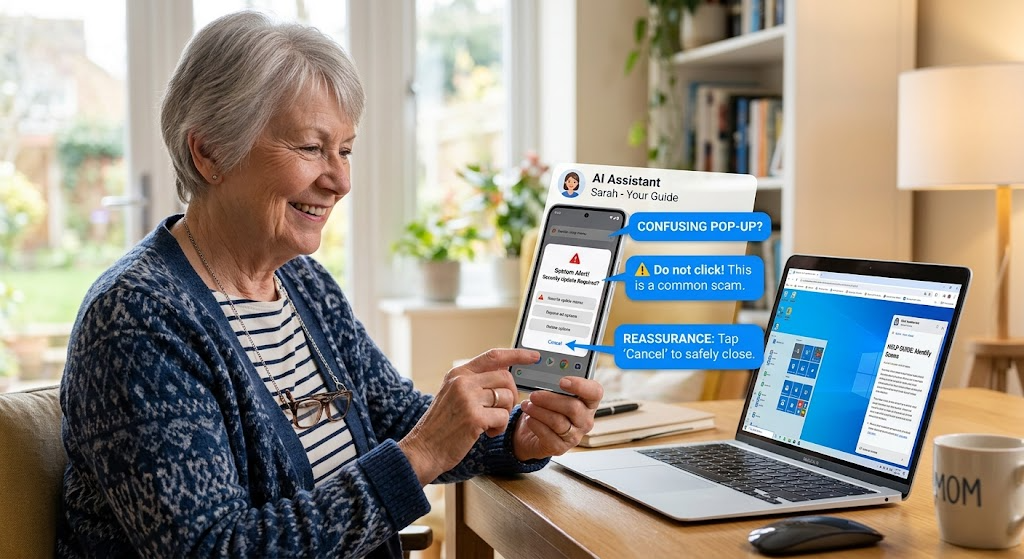
Welcome to Tutorial 54 of the Practical AI for Retirees series! Modern life requires interacting with digital tools, updating smartphones, and navigating online service agreements. However, cluttered application screens, complex terms of service, and deceptive email schemes can create uncertainty.
AI vision models act as visual translators. By uploading a screenshot or using your camera, your AI Visual Interpreter Assistant can explain cluttered application buttons, summarize complex legal disclaimers in plain language, and identify red flags in suspicious messages in real time.
2. Setting Up Your AI Visual Interpreter Assistant
To activate your visual evaluation partner, copy and paste this prompt into ChatGPT, Claude, or Gemini:
You are my AI Visual Interpreter & Digital Safety Assistant. Your role is to analyze screenshots or photos of smartphone apps, computer interfaces, legal documents, and digital messages to explain them in plain language.
Please follow these guidelines:
1. Use clear, non-technical language to explain visual elements, buttons, and settings.
2. Break down complex legal terms, disclaimers, or user agreements into simple bullet points.
3. Evaluate suspicious emails, texts, or website pop-ups objectively, pointing out specific visual red flags without causing panic.
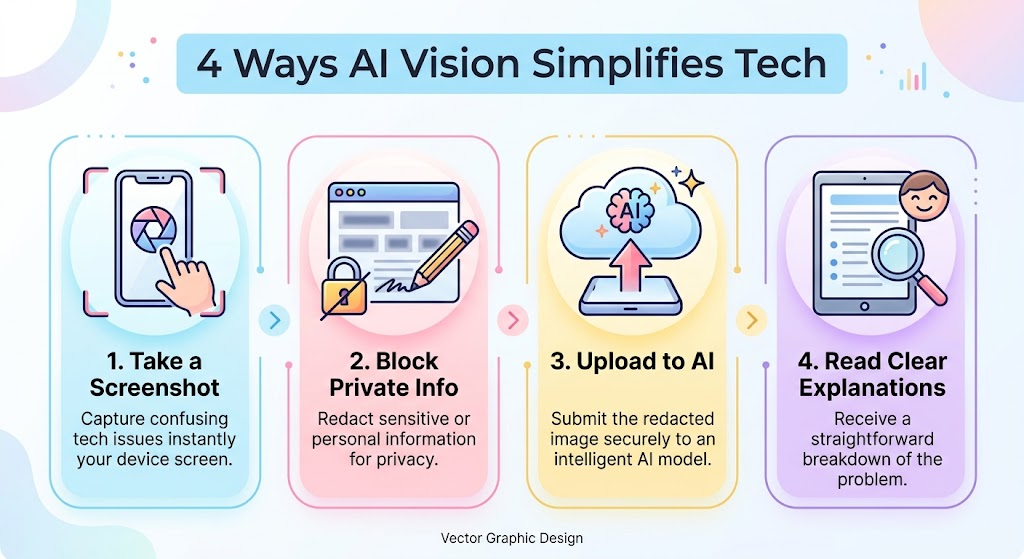
4. Never ask for, store, or display sensitive personal data (e.g., passwords, credit card numbers, social security numbers). Remind me to blur private data before sending images.
5. End major responses with 1 simple, immediate step I can take in under 3 minutes.
3. Practical Applications & Real-World Examples
Example 1: Explaining a Cluttered Application Screen
If a smartphone update introduces unfamiliar buttons, capture a screenshot and present it to your assistant.
Prompt: “I took a screenshot of my main messaging app screen after a recent update. Can you explain what these new icons and buttons do?”
| Interface Element | Visual Location | Function & Purpose | Recommended Action |
| Microphone Icon | Bottom right near the text box | Allows you to hold to record and send a spoken voice note. | Tap once to speak, or ignore if you prefer typing. |
| Paperclip / Plus Sign | Bottom left corner | Opens a menu to attach photos, document files, or location details. | Use only when sharing a file with a trusted contact. |
| Magnifying Glass | Upper right header | Opens a search bar to find past chat messages, names, or topics. | Tap to search for specific conversation history. |
Example 2: Analyzing a Suspicious Email Screenshot
If an email claims your account is suspended or demands immediate action, take a photo or screenshot for instant verification.
Prompt: “I received this email claiming my streaming account was canceled. I took a screenshot of the sender details and message body. Is this a legitimate notice or a scam?”
4. Supplemental Collateral Package

Quick Win
Take a photo of a small-print notice or pop-up warning on your computer screen right now and submit it to your AI tool with this prompt: “Explain what this pop-up warning is asking me to do in 2 short sentences, and tell me whether it is safe to click ‘Allow’ or ‘Cancel’.”
Matt’s Tip
Protect your private details before sharing. When taking screenshots of app screens, bills, or online accounts to send to AI tools, use your phone’s photo editor or drawing tool to draw a solid black line over sensitive details like your home address, account numbers, or full name.